Summaries, tables and SQL beside your sources
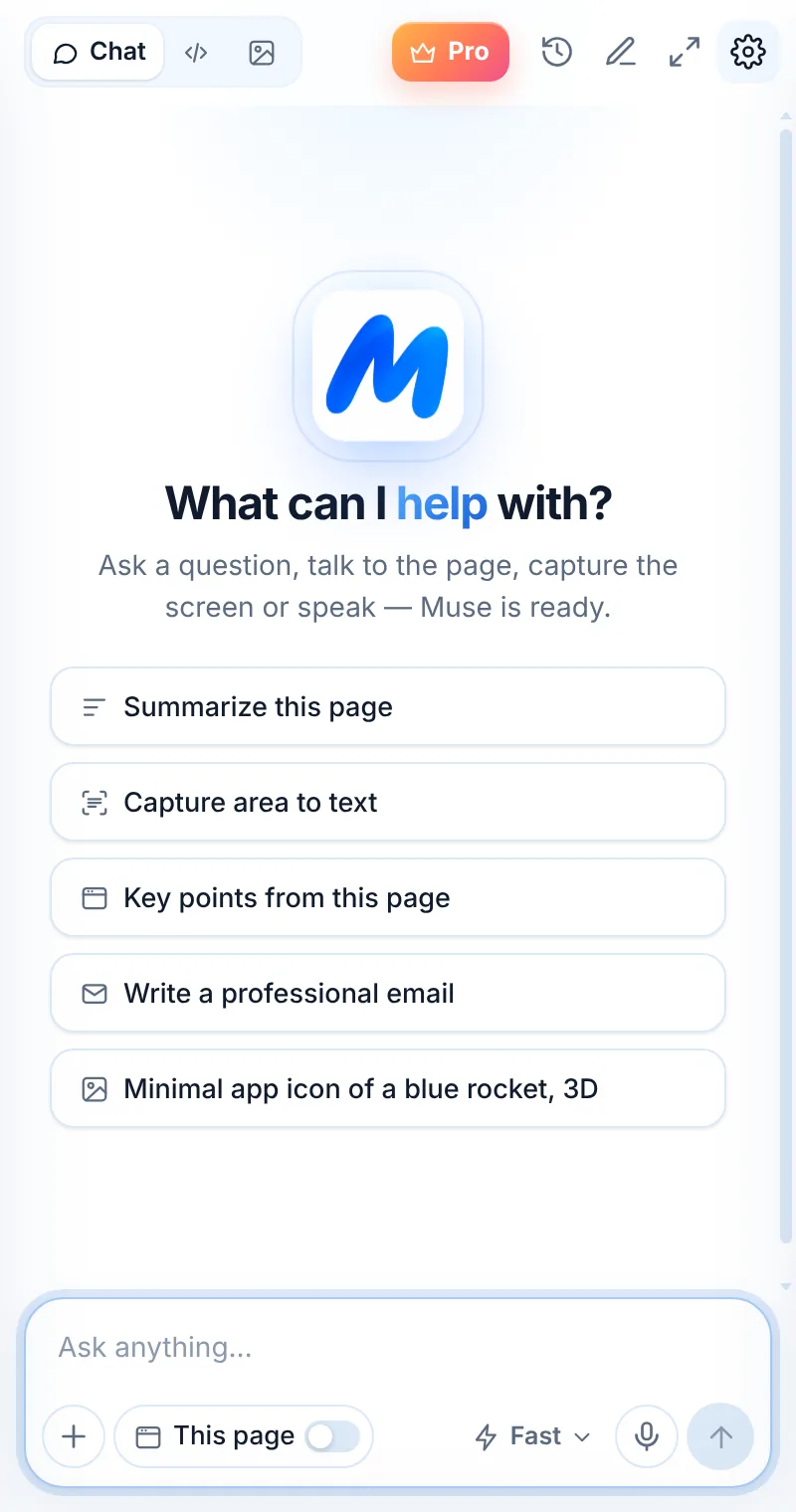
Turn long reports into findings, pull numbers out of charts and tables, and write SQL for your analysis — in Chrome’s side panel.
How it fits into your day
Open the source
A report, article or dashboard.
Extract
Summarize it or capture the table you need.
Analyze
Ask for comparisons, or the SQL to reproduce it.
Read less. Understand more.
Summarize reports, pull numbers out of charts and tables, and turn questions into SQL — with Muse beside your sources.
- Key findings from long reports and papers
- Extract tables from screenshots as text
- Explain charts and dashboards
- Write and fix SQL for your analysis
Things to ask
Common questions
Can Muse read PDFs?
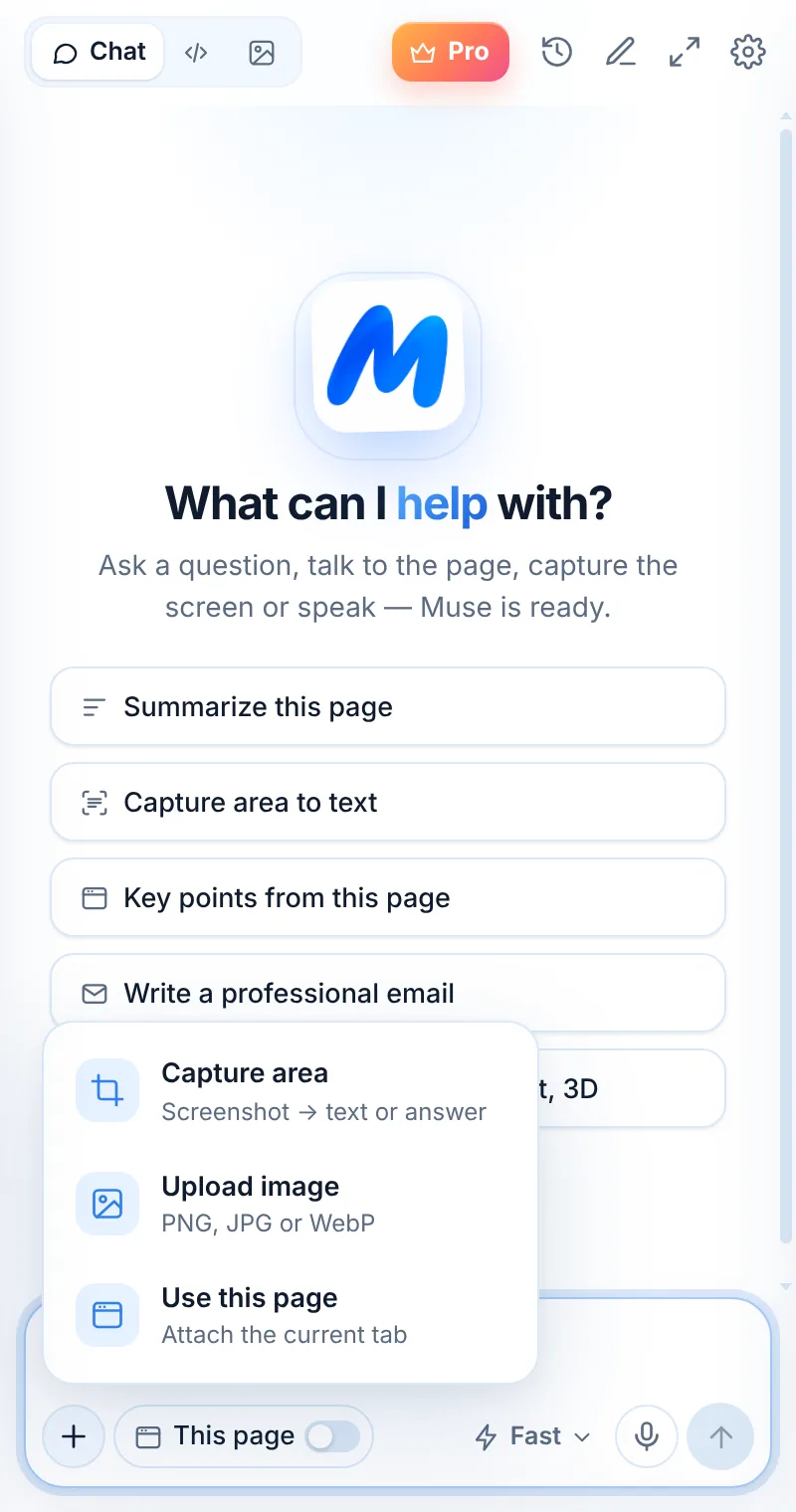
Muse reads web pages and screenshots. For a PDF open in the browser, capture the area you need with Capture area, or copy the text into the chat.
Can Muse cite sources?
Muse answers from the page or content you provide. When you use This page, ask it to quote the relevant passages so you can check them.
Is my data private?
Page text and screenshots are processed to answer you and not stored on Muse servers.
Related pages

Your AI assistant is one click away
Add Muse to Chrome for free. Two AI requests a day on the free plan — upgrade only if you need more.