 MuseAI
Text inside images, screenshots, slides and video frames can’t be selected like normal text. You can still get it out in seconds. This guide covers the quickest way with Muse’s Capture area, the built-in Chrome option, and tips for tables and code.
Short answer: press Alt+Shift+S, drag over the image, then choose Extract text.
Copy text from any part of the screen with Muse
- Open the page with the image, slide or video.
- Press Alt+Shift+S, or open Muse and choose + → Capture area. You can also right-click and pick Capture area to text.
- Drag a box around the text you need.
- Choose Extract text. Muse returns the text — tap Copy to put it on your clipboard.
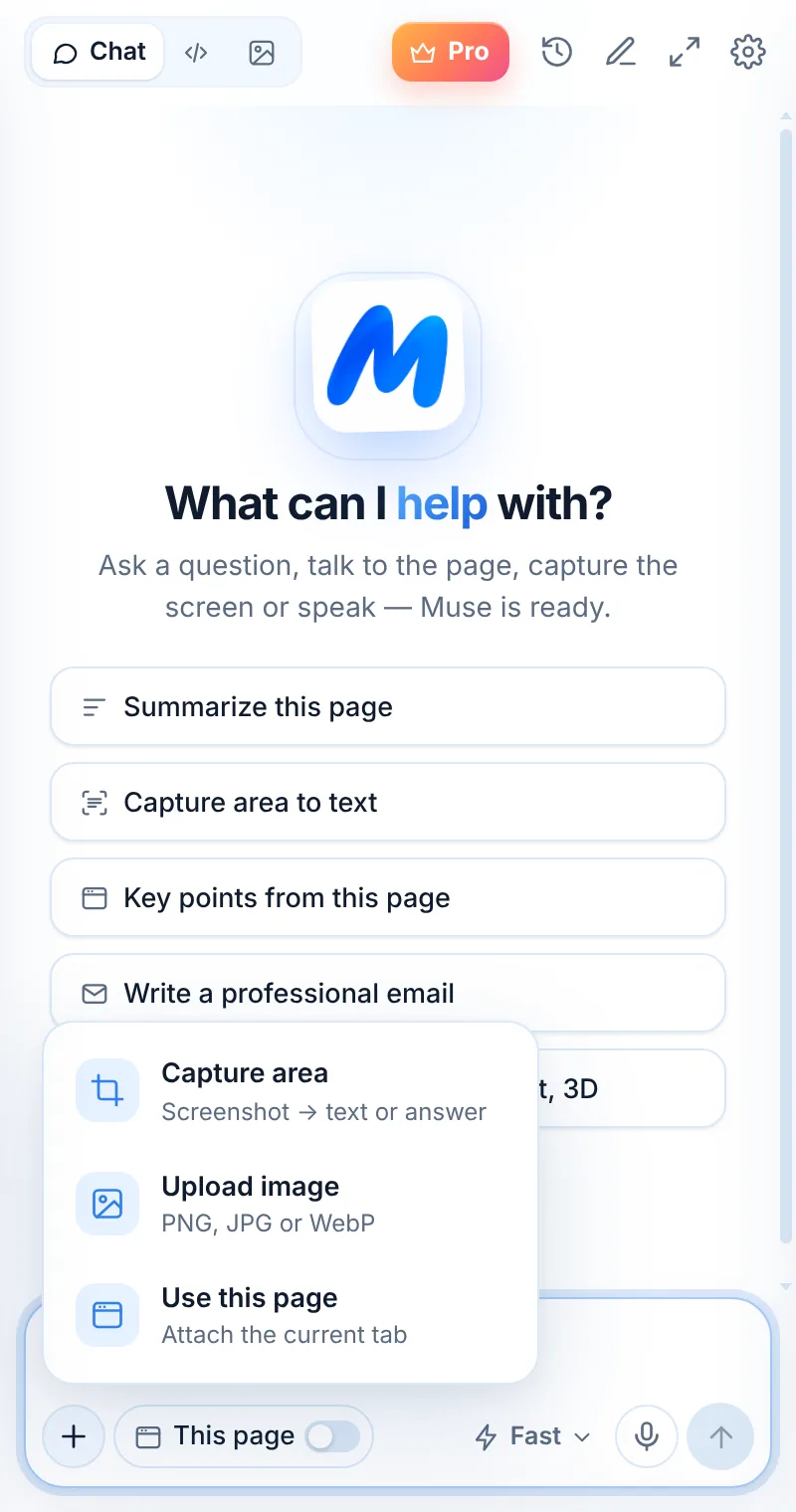
Because Muse is an AI model rather than plain OCR, you can also choose Explain (what a chart or diagram shows) or Solve (work through a problem step by step), or ask your own question about the capture.
Upload or paste an image file
Have the image as a file? Click + → Upload image (PNG, JPG or WebP up to 8 MB) or paste it into the message box, then ask “Extract all text from this image”. You can add up to 4 images in one message.
The built-in Chrome option
Chrome also offers Google Lens: right-click an image and choose to search it with Google Lens, then select the text in the Lens panel. It’s handy for single images; Muse is faster when you want the text cleaned up, translated, turned into a table or explained in the same step.
Tips for tables and code
- Tables: ask “Extract this table as CSV” or “as a Markdown table”.
- Code: ask “Extract this code exactly, keep indentation” — Muse returns it in a code block.
- Translations: “Extract the text and translate it into English”.
- Blurry text: zoom the page in (Ctrl/⌘ +) before capturing.
When capture doesn’t work
Chrome’s own pages and the Chrome Web Store can’t be captured by extensions. Some streaming videos protected by DRM appear black in captures. Otherwise, if it’s visible in a normal tab, Muse can read it.
FAQ
Is it OCR?
It does what OCR does — turns pixels into text — but with an AI model, so it can also clean up, translate, explain or reformat the text.
Are captures saved?
No. Captures are sent only when you choose to and are not stored on Muse servers.
Can I change the shortcut?
Yes — open chrome://extensions/shortcuts and set your own keys.