 MuseAI
Chrome’s side panel lets extensions show a panel beside the page you’re viewing — it stays open as you switch tabs and never covers the website. That makes it the perfect place for an AI assistant. Here’s how to set up and use Muse AI Assistant in the side panel.
1. Install and pin Muse
- Open Muse in the Chrome Web Store and click Add to Chrome.
- Click the puzzle-piece Extensions icon in the toolbar.
- Click the pin next to Muse AI Assistant so it stays visible.
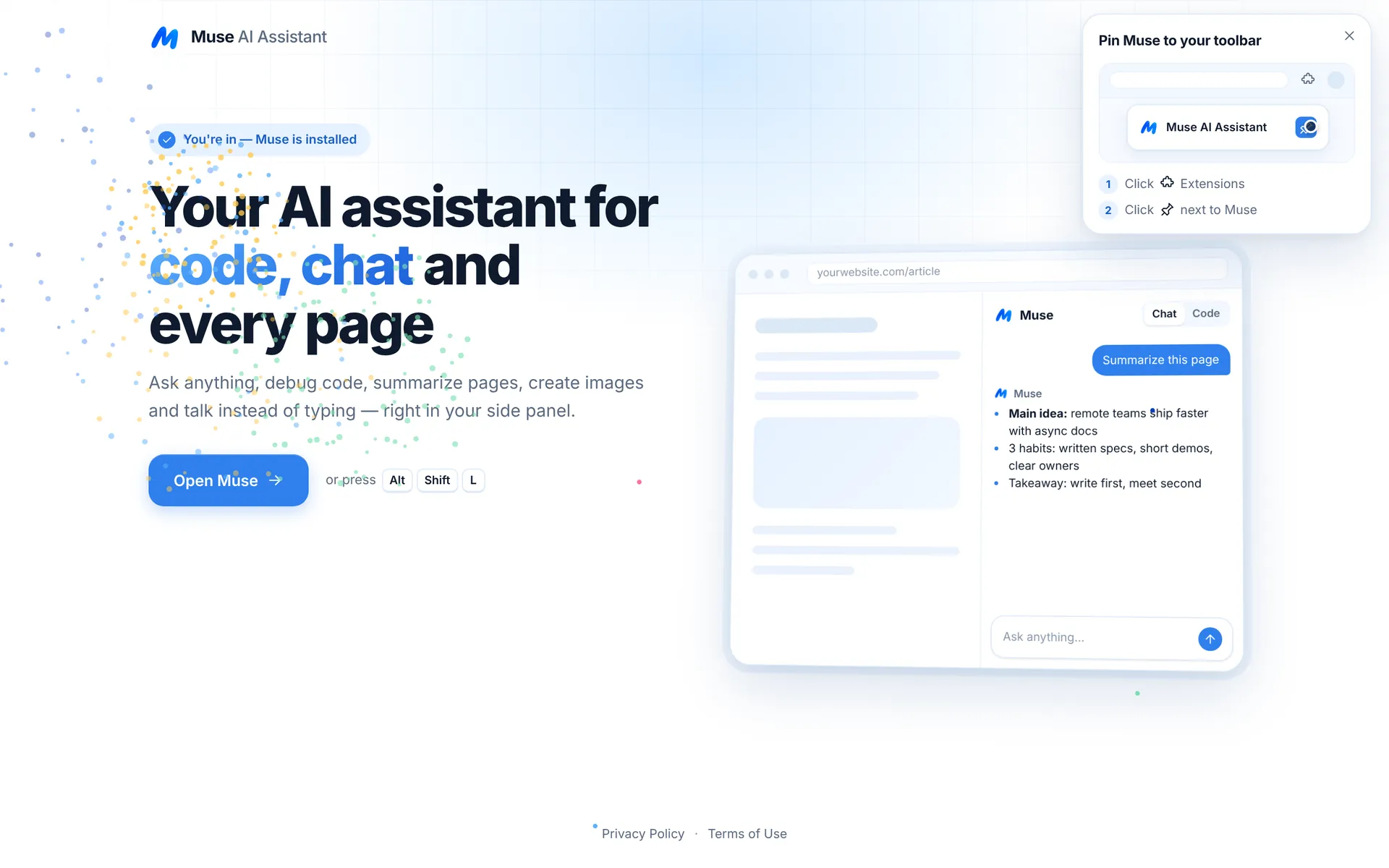
2. Open the side panel
Click the Muse icon, or press Alt+Shift+L on Windows, Linux and ChromeOS or ⌘+Shift+L on Mac. Drag the panel’s edge to make it wider or narrower.
3. Pick a mode
- Chat — questions, writing, summaries. More
- Code — eleven coding tools with a language picker. More
- Image — create pictures in seven styles. More
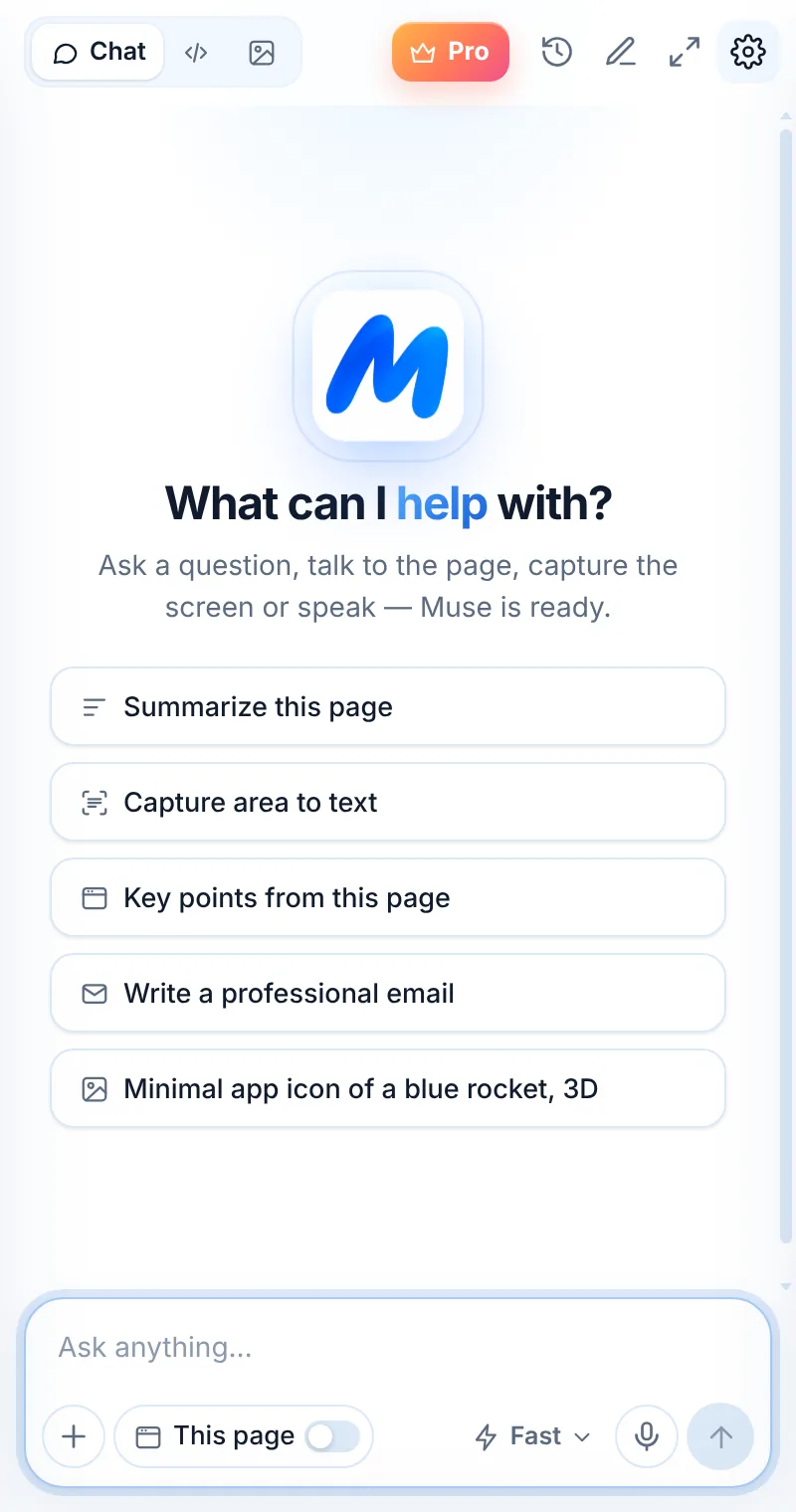
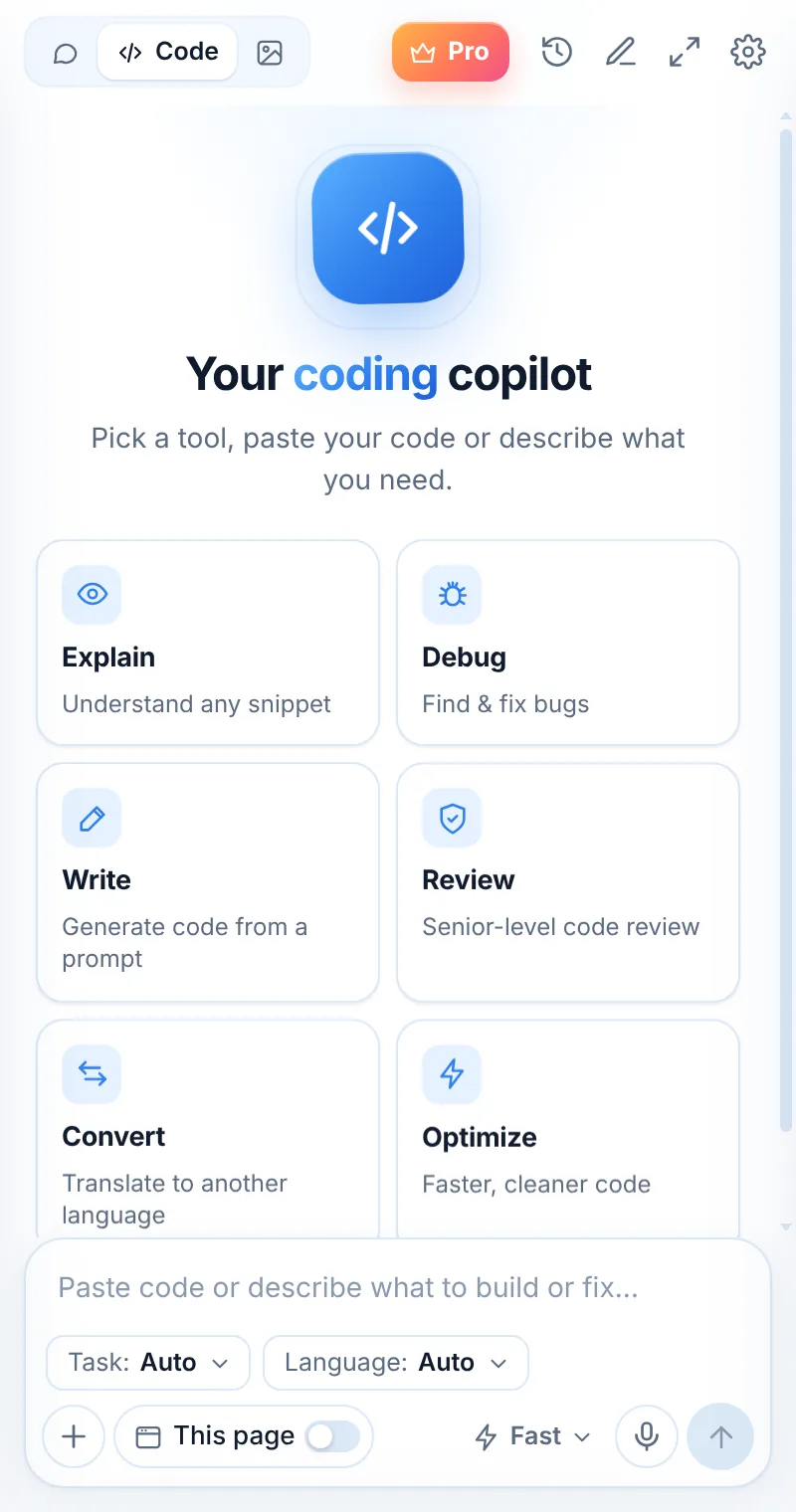
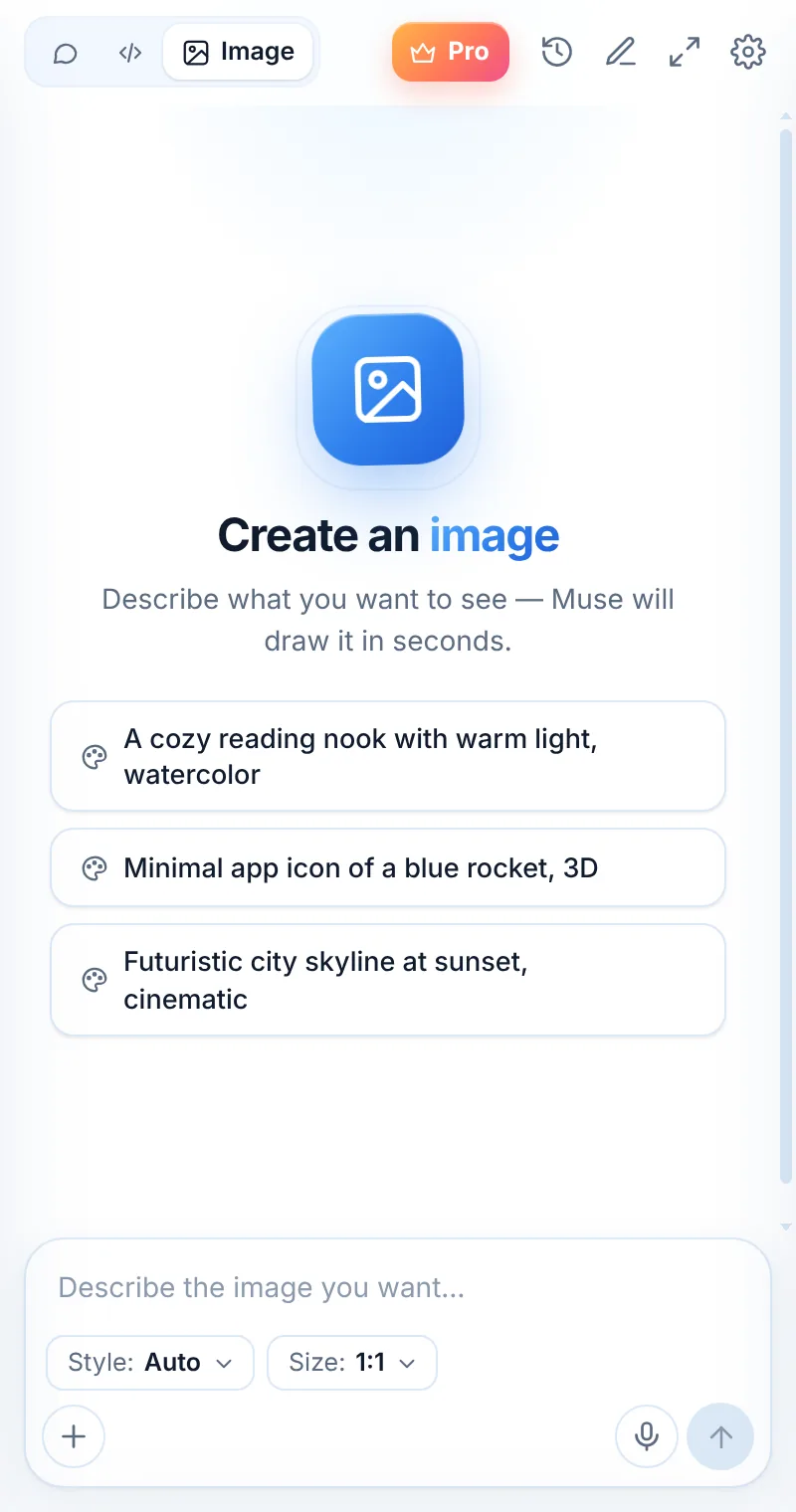
4. Give it context
Turn on This page to include the current tab, use + to capture an area or upload an image, or tap the mic to speak. Muse uses only what you add.
5. Make it yours
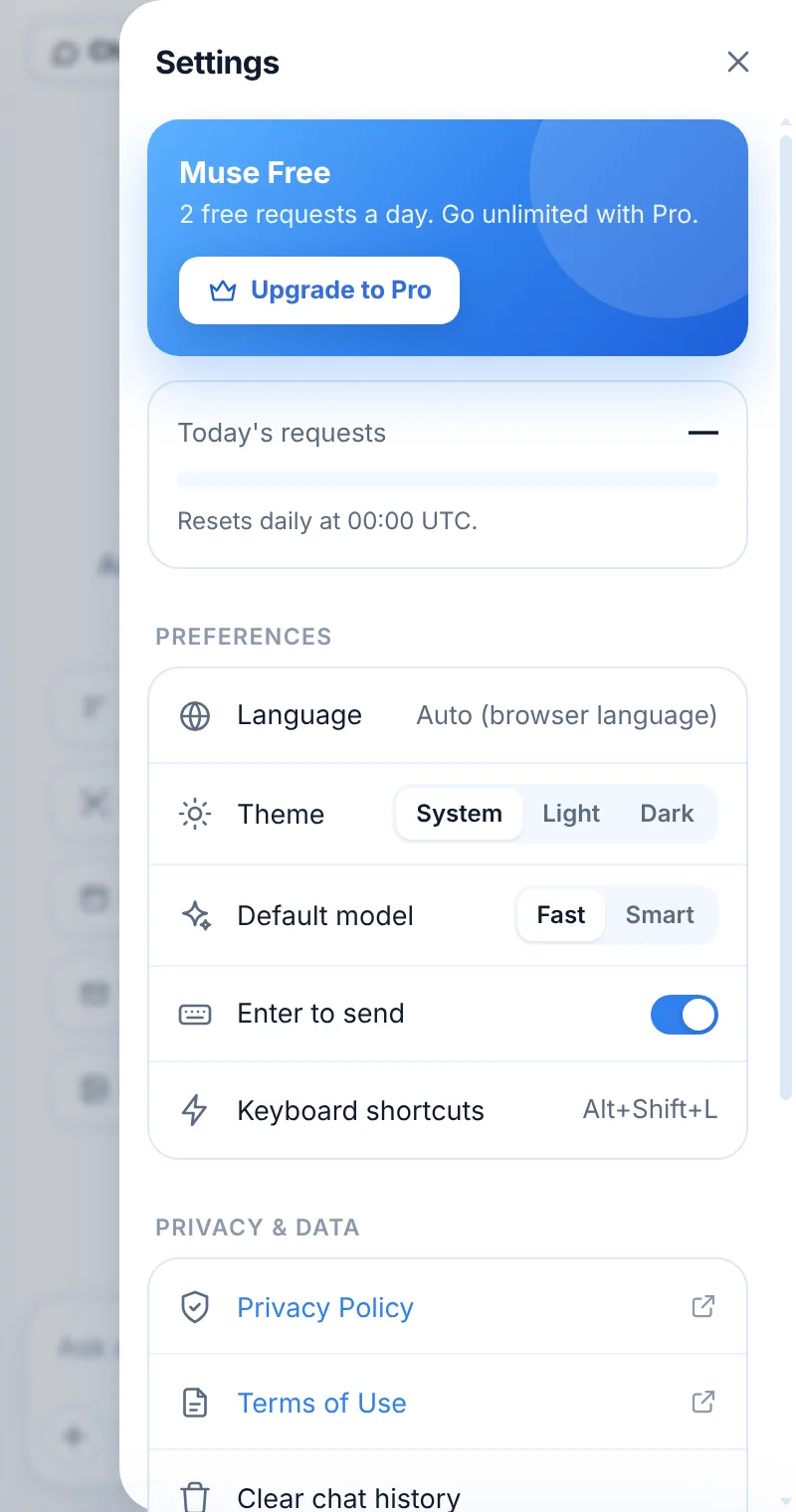
Open Settings to choose the theme (System, Light, Dark), interface language, default model (Fast or Smart) and whether Enter sends messages. You can also clear history or delete all your data there.
6. Go full window when you need space
Click the expand icon to open Muse in a full tab with your chat history in a sidebar — ideal for long code reviews and image work.
Keyboard shortcuts
- Alt+Shift+L / ⌘+Shift+L — open Muse
- Alt+Shift+S — capture an area
- Enter — send · Shift+Enter — new line · Ctrl/⌘+Enter — always send
Change shortcuts at chrome://extensions/shortcuts.
FAQ
Which Chrome version do I need?
Chrome 116 or newer on desktop (Windows, macOS, Linux or ChromeOS).
Can I use the side panel on mobile?
No. Chrome on Android and iOS doesn’t support extensions.
Can two extensions share the side panel?
Chrome shows one side panel at a time. Switch between panels from the side panel menu.