 MuseAI
Long articles, documentation and reports are easier to work with when you can see the main points first. Chrome doesn’t summarize pages on its own, but an AI extension can do it in a couple of clicks. This guide shows three ways to summarize any web page with Muse AI Assistant — and how to write prompts that give better summaries.
Short answer: install Muse, open it with Alt+Shift+L, turn on This page and tap Summarize this page.
Method 1: the “This page” switch
This is the fastest way and works on most news sites, blogs and docs.
- Open the article you want to summarize.
- Open Muse from the toolbar or with Alt+Shift+L (⌘+Shift+L on Mac).
- Turn on the This page switch at the bottom of the side panel. The first time, Chrome asks you to allow page access — Muse reads a page only when you ask.
- Tap Summarize this page, or type your own request.
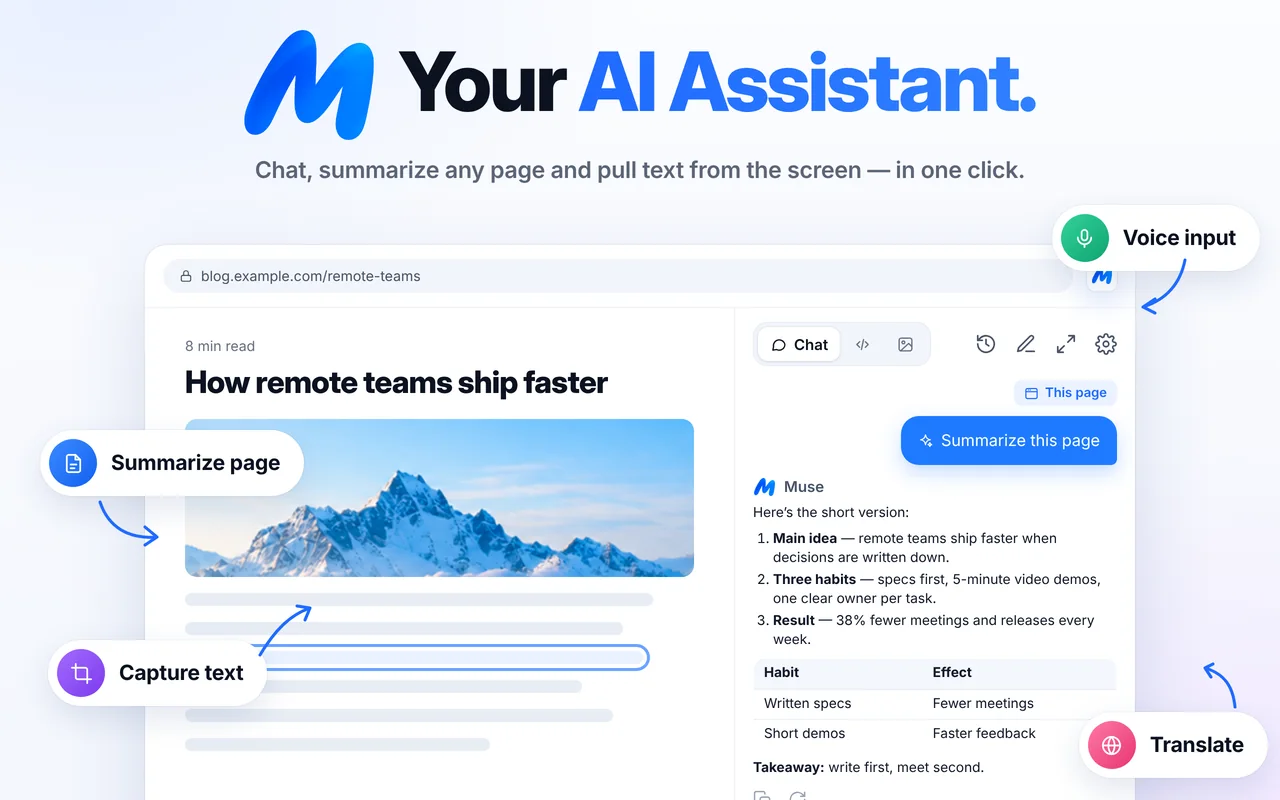
Muse reads the page title, address and visible text — up to about 60,000 characters — and answers with the page as context. Keep the switch on to ask follow-up questions like “What does the author recommend?” or “List every number mentioned”.
Method 2: right-click “Ask Muse about this page”
Prefer the mouse? Right-click anywhere on the page and choose Ask Muse about this page. Muse opens with the page attached, ready for your question.
Method 3: summarize only a selection
For a long page where only one section matters, select that text, right-click and choose Summarize selection. Muse summarizes just the highlighted part in clear bullet points.
Prompts for better summaries
- Set the length: “Summarize this page in 5 bullets” or “in one sentence”.
- Set the audience: “Explain this page to a beginner” or “for a CFO”.
- Ask for structure: “Give me the main argument, the evidence and the weak points”.
- Pull facts: “List every date, number and name mentioned”.
- Make it actionable: “What should I do after reading this?”
What Muse can’t summarize
Chrome protects its own pages (settings, the new-tab page, chrome:// pages) and the Chrome Web Store, so no extension can read them. Pages that load content inside complex viewers may also hide their text — in that case use Capture area to read the visible part.
Is it private?
The page is sent only when you turn on This page or use a page action. It’s used to generate your answer and not stored on Muse servers; your chat history stays in your browser. Read the Privacy Policy for details.
FAQ
Can Chrome summarize a page without an extension?
Chrome has no built-in one-click summary for every page. An extension like Muse adds it to the side panel.
Is summarizing free?
Each summary is one request. The free plan includes 2 requests a day; Muse Pro is unlimited.
Does it work in other languages?
Yes. Ask in your language and Muse replies in it, even if the page is in another language.